Contents
Tags

Ollama Is Using CPU Instead of GPU: The Real Cause
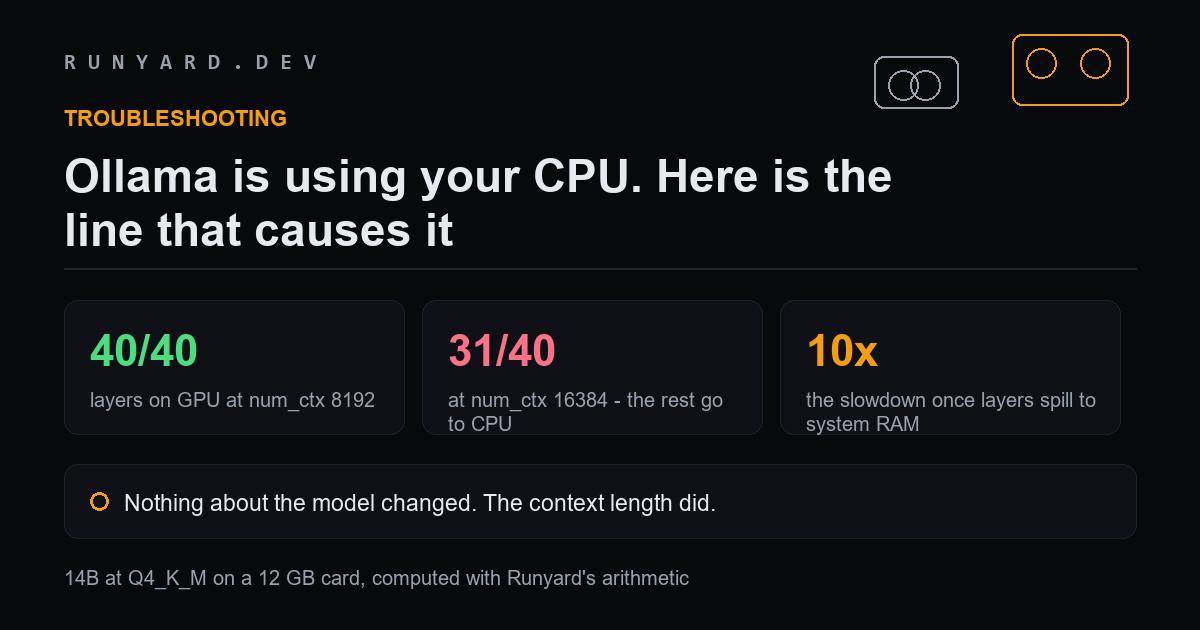
You installed Ollama, the model runs, and your GPU sits at 5% while the CPU fans spin up. Most guides send you to driver reinstalls. That is rarely it.
The usual cause is that the model plus its KV cache no longer fits, so llama.cpp — which Ollama runs underneath — quietly moves some layers to system RAM. It does not fail. It just gets slow.
The number that explains it
Take a 14B model at Q4_K_M on a 12 GB card, which gives about 10.8 GB usable. Layers stay on the GPU until the cache pushes them off:
- ▸num_ctx 2048 — all 40 layers on the GPU.
- ▸num_ctx 4096 — all 40.
- ▸num_ctx 8192 — still all 40.
- ▸num_ctx 16384 — 31 of 40. Nine layers now run on the CPU.
Nothing about the model changed between those lines. Only the context did, and the cache it demands grew with it.
Every token passes through every layer, so the slow side dominates. Moving a fifth of the layers to system RAM does not cost a fifth of your speed — it can cost most of it.
How to confirm it in ten seconds
Run your model, then in another terminal:
ollama ps
# look at the PROCESSOR column: 100% GPU, or a CPU/GPU split

nvidia-smi
# and check nothing else is holding VRAM
If ollama ps reports a split, this is your problem and no driver reinstall will fix it.
The fixes, in order of effect
- ▸Lower num_ctx. The single biggest lever, because the cache scales with it. Use the smallest window that holds your actual prompts.
- ▸Drop one quantisation rung. Q4_K_M to Q3_K_M frees about 1.75 GB on a 14B, which is usually enough to bring every layer back.
- ▸Enable flash attention, which reduces peak attention memory at no quality cost.
- ▸Close the browser. A compositor and a few tabs can hold a surprising amount of VRAM, and Ollama only gets what is left.
- ▸Check nothing else is resident — nvidia-smi will show another model still loaded from an earlier session.
What will not help: more system RAM. That lets a bigger model load, but speed follows the bandwidth of whichever memory holds the weights, and system RAM is roughly ten times slower than a card.
Every figure here is computed the same way the calculators do it: weights are parameters times bits-per-weight divided by eight, plus a KV-cache term for your context, plus about a gigabyte of runtime overhead. Usable memory is roughly 90% of nameplate on a discrete card.
Confirming it in your own setup
ollama ps                 # PROCESSOR column: 100% GPU, or a split
nvidia-smi                # is anything else holding VRAM?
ollama show <model> --parameters   # what num_ctx is actually set to

# Force a smaller context for one session and compare
ollama run <model>
/set parameter num_ctx 4096
If ollama ps shows a split and dropping num_ctx removes it, you have found the cause and no driver work is needed.
Why a fifth of the layers costs most of the speed
It is tempting to assume moving 20% of layers to system RAM costs 20% of throughput. It does not, and the reason is worth understanding because it applies to every offload decision you will make.
Every token passes through every layer in sequence. The effective rate is a weighted harmonic mean of the two memory speeds, and the slow side dominates. A card at 900 GB/s paired with system RAM at 60 GB/s is not a 15-to-1 advantage spread evenly — it is a bottleneck the token has to cross twice per layer that lives on the wrong side.
Which is why dropping one quantisation rung almost always beats offloading. A model fully resident at Q3_K_M will outrun the same model at Q4_K_M with a fifth of its layers in system RAM, usually by several times.
The cases this does not cover
- ▸Genuinely no GPU detected. If ollama ps reports 100% CPU with a small model that clearly fits, the runtime may not see your card at all — that is a driver or container problem rather than a memory one.
- ▸AMD cards on Windows. ROCm support is narrower than CUDA and some cards fall back to CPU silently.
- ▸Running inside Docker or WSL without GPU passthrough configured, which looks identical from the outside.
- ▸An integrated GPU being picked over the discrete one on laptops.
Common questions
Does more system RAM fix this?
It lets a larger model load, but it does not make it fast. Speed follows the bandwidth of whichever memory holds the weights, and system RAM is roughly ten times slower than a modern card.
Should I set num_gpu manually?
Only when the automatic choice is wrong. Ollama's layer allocation is usually sensible; overriding it is a way to test a hypothesis rather than a routine tuning step.
Why did this start happening after an update?
Either the default context changed, or a new engine version allocates memory slightly differently and pushed a model that was fitting by a hair over the edge. Check num_ctx first.
Work out how many layers fit on your card at your context length.
Open the offload calculator →Tools
Find AI models that fit your exact hardware. Enter your specs and get a ranked list instantly.
Newsletter