Contents
Tags
LM Studio Will Not Load the Model: What Each Error Means
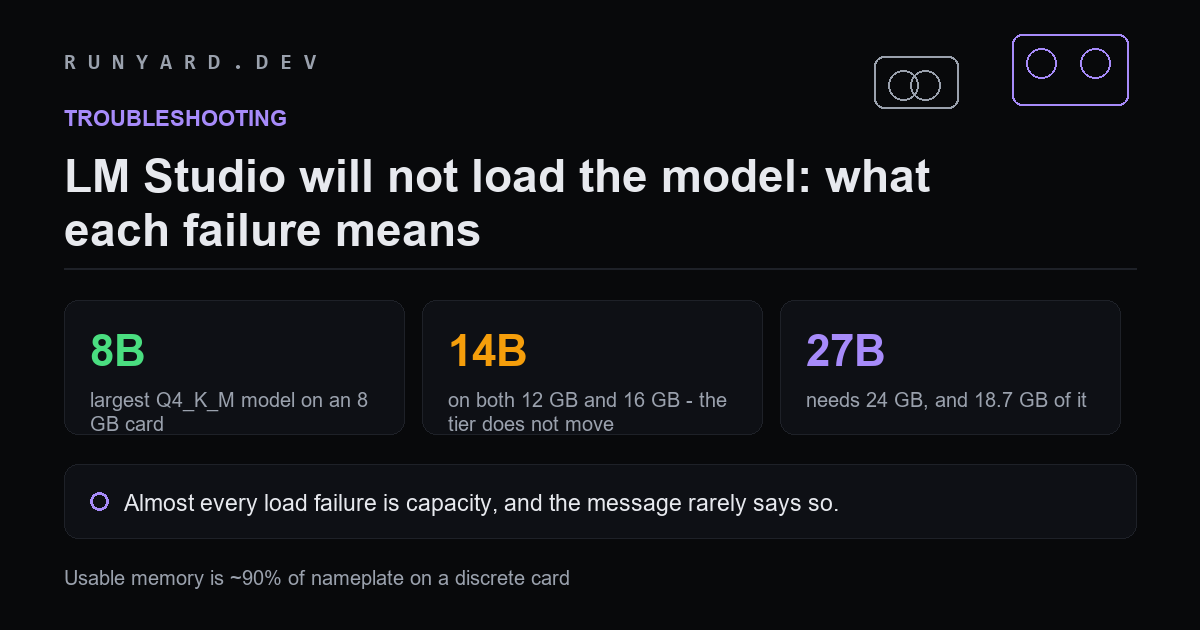
LM Studio's error messages are not always clear about what went wrong. Almost always it is capacity, and the fix is to pick a file that fits rather than to reinstall anything.
What actually fits
At Q4_K_M with an 8K context, computed against usable memory rather than nameplate:
- ▸8 GB card — about 7.2 GB usable. Largest model: 8B.
- ▸12 GB card — about 10.8 GB usable. Largest: 14B.
- ▸16 GB card — about 14.4 GB usable. Still 14B.
- ▸24 GB card — about 21.6 GB usable. Largest: 27B.
The 12 GB and 16 GB rows are the surprise. Four extra gigabytes does not move you up a model tier at this quantisation — it buys headroom for a longer context on the same model instead.
The common failures, and what they mean
It loads, then immediately unloads
The weights fit but the cache does not. Lower the context length in the model's load settings before trying anything else.
Failed to load model / exit code 6 or 42
Usually out of memory dressed up as a generic failure. Check the file size against your usable memory — if the GGUF is within about 2 GB of your card's capacity, it will not fit once cache and overhead are added.
It loads but generates at a crawl
Partial GPU offload. Look at the GPU offload slider — if it is not at maximum and cannot go there, the model is too big for full residency.
Unsupported architecture or unknown model
This one is genuinely not capacity. The GGUF uses an architecture your build of llama.cpp does not know. Update LM Studio; new architectures need runtime support and a recent quant of a brand-new model often needs the newest build.
Pick the file that fits first
Most of this is avoidable at the download step. The rule: choose the largest quantisation whose file is at least 2 GB below your usable memory, which leaves room for the cache and runtime overhead.
Every figure here is computed the same way the calculators do it: weights are parameters times bits-per-weight divided by eight, plus a KV-cache term for your context, plus about a gigabyte of runtime overhead. Usable memory is roughly 90% of nameplate on a discrete card.
Reading the failure correctly
The single most useful diagnostic is when it fails, not what the dialog says:
- ▸Fails instantly on load — the weights do not fit. Nothing to tune.
- ▸Loads then immediately unloads — the weights fit but the cache does not. Lower the context.
- ▸Loads and runs slowly — partial GPU offload. Check the offload slider.
- ▸Loads and outputs nonsense — not a memory problem at all. Usually a chat template or tokeniser mismatch, or a truncated download.
- ▸Refuses with an architecture error — your build predates the model. Update.
Choosing the file so this does not happen
Most load failures are decided at the download step. The rule that avoids nearly all of them: pick the largest quantisation whose file is at least 2 GB below your usable memory.
That 2 GB covers the KV cache and runtime overhead at a normal context. If you intend to use very long contexts, make it 4 GB.
What to try, in order
- ▸Lower the context length in the model's load settings. Fixes the majority of load-then-unload failures on its own.
- ▸Enable flash attention if the option is present.
- ▸Drop one quantisation rung — Q5 to Q4, or Q4 to Q3.
- ▸Close other GPU consumers, particularly browsers.
- ▸Update LM Studio, which updates the bundled engine with it.
- ▸Re-download the file if the first four bytes are not GGUF.
Common questions
Why does the same model work in Ollama but not LM Studio?
Different defaults, not different capability — they share an engine. Usually Ollama has chosen a smaller context, or a different GPU offload split.
What does 'exit code' mean in the error?
Little that is useful. These are generic process failures and the same code covers several causes. Diagnose by timing instead.
Can I load a model bigger than my VRAM?
Yes, with GPU offload set below maximum, and it will be slow. Whether that is worth it depends on how far over you are — a few layers is tolerable, half the model is not.
Does the GGUF quantisation affect whether it loads at all?
Directly. It is the main lever you have. Between Q6_K and Q3_K_M on a 27B model there is roughly 10 GB of difference, which is more than most people's entire headroom.
Check what your card holds before you download 20 GB.
Check your hardware →Tools
Find AI models that fit your exact hardware. Enter your specs and get a ranked list instantly.
Newsletter