Contents
Tags

Find the Best Local LLM for Your PC (2026 Guide)
The local AI space in 2026 is overwhelming. There are hundreds of models on HuggingFace, dozens of quantization formats, and no single place that just tells you what will actually run on your machine — until now. This guide + www.runyard.dev will get you from zero to running the right LLM in under 15 minutes.
Step 1 — Know Your Hardware Numbers
Three numbers determine everything: your GPU VRAM, your system RAM, and whether you have a CUDA-capable NVIDIA GPU, ROCm AMD GPU, or Apple Silicon. VRAM is the most critical — it determines the maximum model size you can run at speed.
- ▸VRAM — open Task Manager → Performance → GPU. Look for "Dedicated GPU Memory".
- ▸System RAM — same screen, look at "Memory". 16GB+ is ideal for larger context windows.
- ▸GPU brand — NVIDIA: CUDA (best support). AMD: ROCm (improving fast). Apple Silicon: unified memory (unique advantage).
You can also go to www.runyard.dev and select your GPU from the dropdown — Runyard auto-fills the VRAM for every GPU in the catalog, no manual lookup needed.
Step 2 — Use Runyard to Match Models to Your Hardware
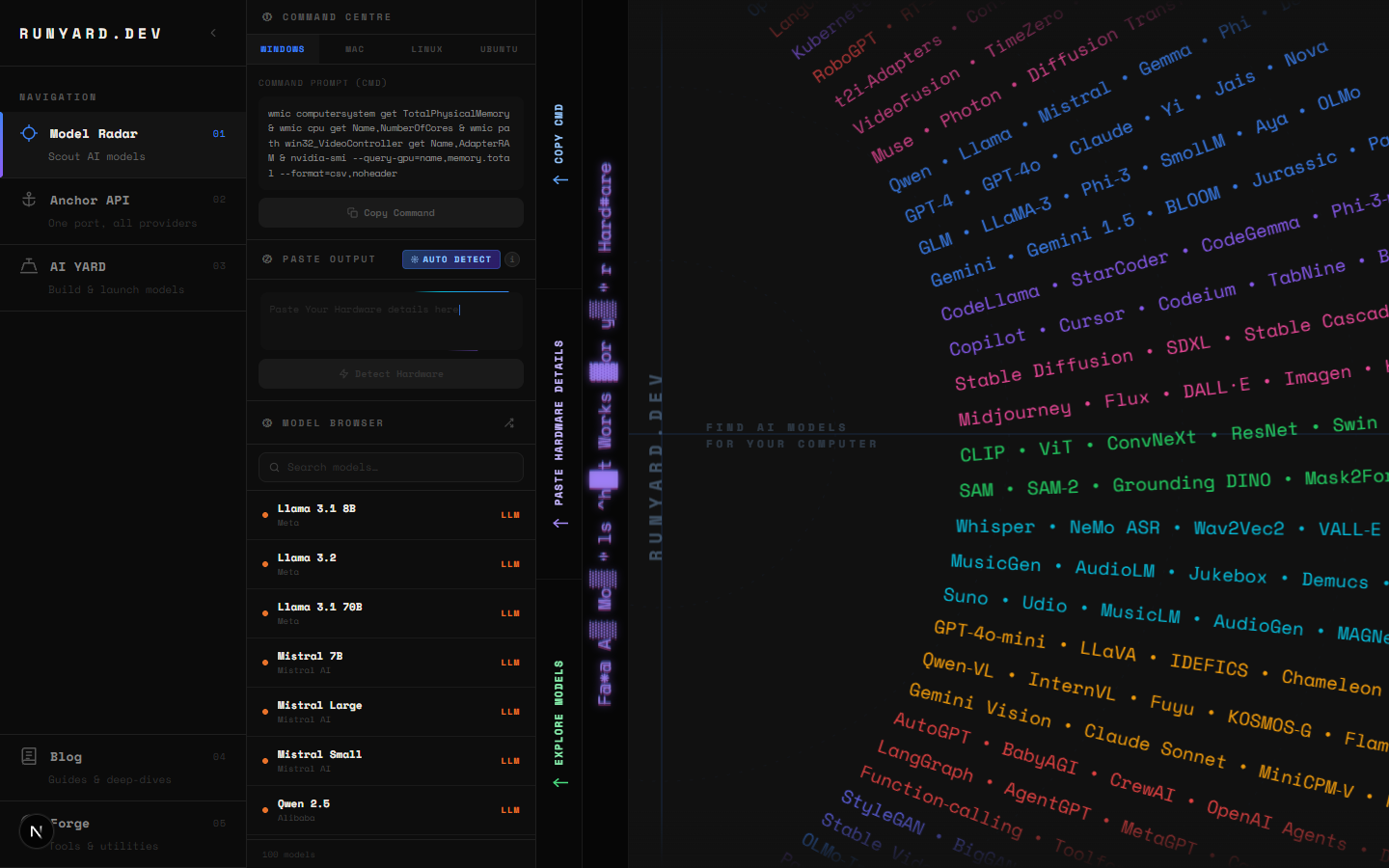
Go to www.runyard.dev. Select your CPU, GPU, and VRAM. The Model Radar scores every open-source LLM across three factors: VRAM fit (40%), memory bandwidth/speed (35%), and benchmark quality (25%). Models drop into S/A/B/C/D tiers. S-tier models are your best bets — they run fast, fit with headroom, and score well on benchmarks.
- 1.Select your GPU from the dropdown — VRAM auto-fills.
- 2.Pick your CPU and system RAM.
- 3.Check the S-tier and A-tier rows in the Tier List below the chart.
- 4.Filter by use case: Chat, Code, Vision, or Reasoning.
- 5.Click a model card to see recommended quantization and expected tok/s.
Step 3 — Understanding Quantization
Quantization compresses model weights so they fit in less VRAM. The most useful formats in 2026:
- ▸Q4_K_M — the sweet spot. 4-bit with K-quant averaging. ~4.5GB for 7B. Best quality-per-GB.
- ▸Q5_K_M — slightly better quality than Q4_K_M. ~5.5GB for 7B. Use when you have headroom.
- ▸Q8_0 — near-lossless. ~7GB for 7B. Best quality, needs more VRAM.
- ▸IQ3_M, IQ2_XS — "importance-quantized" formats. Extremely small but quality drops.
Model: Llama 3.1 8B
Q4_K_M → ~4.7 GB VRAM   (recommended for 8GB cards)
Q5_K_M → ~5.7 GB VRAM
Q8_0   → ~8.5 GB VRAM   (needs 12GB card)
FP16   → ~16  GB VRAM   (needs 24GB card)
Step 4 — Best Models by VRAM in 2026
Step 5 — Install Ollama and Pull Your Model
# 1. Install Ollama (macOS / Linux)
curl -fsSL https://ollama.ai/install.sh | sh
# Windows: download from https://ollama.ai/download/windows

# 2. Pull the model Runyard recommended
ollama pull llama3.1:8b          # 8GB VRAM
ollama pull mistral:7b           # 8GB VRAM
ollama pull qwen2.5-coder:7b     # coding, 8GB VRAM
ollama pull gemma2:9b            # 8GB VRAM, best reasoning at size

# 3. Chat immediately
ollama run llama3.1:8b
Runyard shows the exact ollama model tag to use for each model. Click a card in the Tier List at www.runyard.dev and copy the run command directly — no manual research needed.
Step 6 — What to Do If It's Too Slow
- ▸Switch to a smaller quantization — Q4_K_M is usually the best speed/quality trade-off.
- ▸Try a smaller model — going from 13B to 7B roughly doubles your tok/s.
- ▸Reduce context length — a 4096-token context uses far less KV cache than 32K.
- ▸Make sure all layers are on GPU — run: OLLAMA_NUM_GPU=999 ollama run model
- ▸Close other GPU apps — even a browser with hardware acceleration eats VRAM.
The Shortcut: Let Runyard Do the Work
The fastest path: go to www.runyard.dev, enter your specs, look at your S-tier models, filter by your use case, and copy the Ollama command. That's it. What used to take 2 hours of forum-reading now takes 2 minutes.
Tools
Find AI models that fit your exact hardware. Enter your specs and get a ranked list instantly.
Newsletter